Squarespace Internal Linking: Connect Your Blog to Your Services
Publishing another article creates an opportunity to answer a customer’s question. But once someone finishes reading, can they find the service that solves their problem?
A blog can contain useful advice and still feel disconnected from the business behind it. Readers arrive, learn something and leave because the next relevant page is difficult to find.
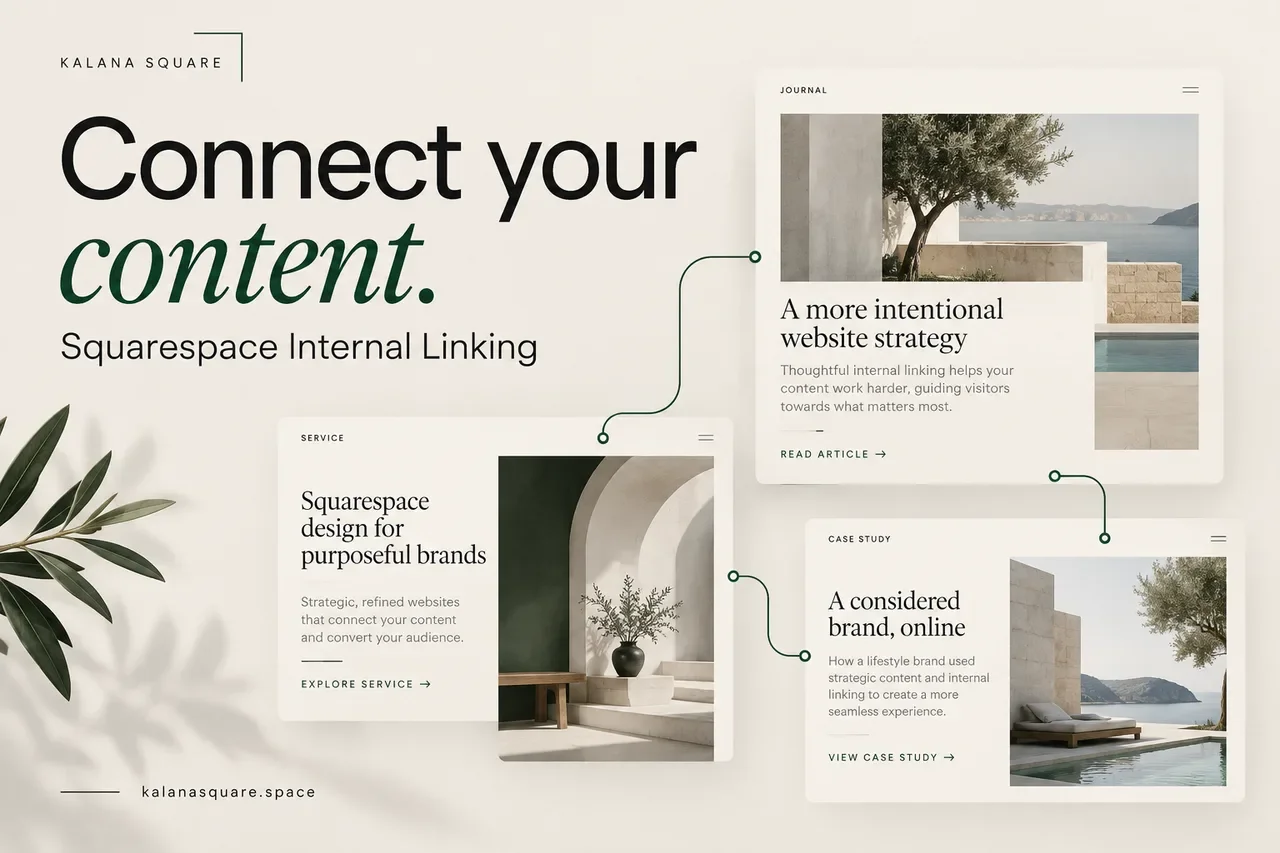
Squarespace internal linking connects articles, services, project examples and contact options. Done well, it helps people explore your expertise at their own pace and gives search engines clearer paths through your website.
What is Squarespace internal linking?
Internal linking means linking one page of your website to another page on the same website. An article linking to your redesign service is an internal link. A service page linking to a related case study is another. Navigation and footer links also count.
Links to outside resources, such as Squarespace documentation, are external links. Both can be useful, but they serve different purposes.
Google explains that links help it discover pages and understand relevance. Its link best practices recommend descriptive anchor text and links to important pages from elsewhere on the website.
1. Identify the pages your blog should support
Start with the services people can actually hire you for. A small design business might offer new websites, redesigns, SEO and migrations. Each offer should have a clear destination that explains its audience, scope and next step.
Create a simple list of these pages and the questions they answer. Then map each article to the most relevant destination. An article about moving from WordPress should support migration enquiries; a mobile-usability guide may support redesign or optimization work.
If several service pages describe the same offer, resolve that confusion before adding more links. A clear content structure makes link decisions easier.
2. Follow the reader’s next question
The best destination is the one that continues the reader’s current task. Someone learning about website costs may need an explanation of the process before they are ready to enquire. Someone comparing approaches may want to see a real project.
Ask: “Would this page help someone act on the paragraph they just read?” If the answer is no, the link may be premature or unrelated.
For example, a paragraph about preserving URLs during a migration can lead to a detailed migration guide. A paragraph about choosing professional help can lead to the relevant service. These connections feel useful because they follow the topic already in progress.
3. Give each page type a clear role
An educational article explains a problem or decision. A service page explains what you offer. A case study demonstrates documented work. A contact page begins the conversation.
These roles can overlap, but each page should still have a main purpose. Otherwise, your articles become long sales pages and your service pages become unfocused tutorials.
Imagine a consultant with an outdated website. They may read about redesigning versus rebuilding, explore a redesign service and then inspect a relevant project. Internal links make that route available without forcing every visitor through it.
4. Write meaningful anchor text
Anchor text is the clickable wording of a link. “Click here” tells a scanning reader very little. “Explore Squarespace SEO services” gives a useful preview of the destination.
Write the sentence naturally, then link the words that describe the next page. Avoid turning whole paragraphs into links or repeating an exact keyword in every mention.
Different wording can point to the same resource when the context changes. What matters is that the promise remains accurate. A link labelled “See the project” should open that project, not a general homepage.
5. Place links near the relevant explanation
A related-articles block at the end is helpful, but a reader may need another resource earlier. Put contextual links beside the idea they expand.
If a section explains that poor mobile forms can reduce enquiries, link to a form guide there. If a paragraph discusses structural problems, link to the appropriate website-planning resource.
Do not interrupt every sentence with a link. The page should still read comfortably, and the original question should be answered without requiring several extra tabs.
6. Connect older posts to new work
When you publish a new article, review a few older pages that address related questions. Add a reference where the new guide improves the explanation.
For example, an existing mobile article can link to a new contact-form guide in its forms section. The contact-form article can link back where it discusses broader mobile usability.
Reciprocal links are useful when both directions serve readers. They do not need to become a rule for every pair of pages. A small number of meaningful connections is easier to maintain than links added everywhere.
7. Use a manageable content map
A spreadsheet or project board is enough for a small website. Record the article title, URL, main topic, related service and one or two relevant supporting resources.
This helps your writer and developer avoid competing articles and broken references. It also reveals gaps. You may have several posts about redesign decisions but no service page explaining how to hire you for the work.
Review the map when services change. Links that were sensible a year ago may lead to offers you no longer provide.
8. Add links using normal Squarespace controls
For standard text links, select the words in the editor, use the link control and choose the page or enter the destination URL. Save and test the result. The exact interface depends on the content area.
Squarespace’s text-link guide explains the supported workflow. Basic internal linking does not require a separate plugin.
Keep ordinary internal navigation in the same tab unless a specific reason makes another behaviour more helpful. Test buttons and linked images as well as text links.
9. Check the destination before recommending it
A working URL is only the beginning. Does the page answer the question promised by the link? Is the service current? Is the contact option functional?
Look for outdated offers, thin project descriptions, broken forms and draft-only destinations. A visitor should not reach an unfinished page after following a confident recommendation.
If a linked article is not ready, leave the reference out until it is available. Do not publish a link simply because a planned slug looks plausible.
10. Keep internal links free of campaign tags
Campaign parameters are useful on external promotion links, such as a Pinterest Pin pointing to your article. Ordinary links between your own pages should normally use clean URLs.
Mixing campaign-tagged URLs into your internal navigation can complicate reporting and create unnecessary URL variations. Use a separate approach to track internal interactions where your analytics setup supports it.
Consistent clean destinations also make maintenance easier for anyone updating the site later.
11. Review the journey, not the total number of links
Choose one article and follow its routes as a potential customer. Can you understand the related service, find credible work and reach the contact page?
There is no universal ideal number of links that makes a page successful. A short, focused article may need fewer links than a detailed guide. Relevance and clarity are more useful standards than a quota.
If readers reach a service page but do not enquire, inspect that page too. Internal linking cannot fix an unclear offer or a difficult form.
12. Measure useful outcomes
Review article traffic, movement to relevant service pages and completed enquiries separately where your analytics allows it. A link click shows interest; a submitted project enquiry is a different outcome.
Record the date of major changes so later comparisons have context. Search demand, traffic sources and other updates can influence results.
Internal linking supports discovery and navigation. It does not guarantee rankings or recommendations from AI assistants.
Frequently asked questions
Should every article link to a service?
Only when the service is relevant. Sometimes another educational guide is the more useful next step. Do not force a sales destination into an unrelated topic.
Should most links point to the homepage?
No. The homepage introduces the business, while a specific service, project or article usually answers a more focused question.
Should I change URLs while improving links?
Not just to improve the clickable wording. You can change anchor text without changing the destination. Handle URL changes separately, including redirects where appropriate.
Connect your content to the work clients can hire you for
Your blog should help people understand both their problem and the available next steps. Useful internal links make those steps easier to find.
As a Squarespace Marketplace Expert with more than seven years of experience and over 450 completed websites, I help businesses connect content, service pages and project evidence into a clearer enquiry journey.
Explore my Squarespace SEO services, or contact Kalana Square to discuss your website.